3 - Create the GDS and submit your design
This guide will walk you through the process of preparing and submitting your Wokwi design using the Tiny Tapeout Wokwi submission portal. We’ll cover the necessary steps to convert your design into the ASIC files required for chip manufacturing and also view your files with the 3D viewer.
Prerequisites
- Wokwi Project: the project must have been started from the Tiny Tapeout Wokwi Template.
- GitHub Account: If you don’t have a GitHub account, sign up for one here.
Filling in the Submission Form
To submit your Wokwi project to a shuttle, we will use a helpful submission portal that will take care of creating the GitHub repository, setting up GitHub Actions and populating the relevant files.
The submission portal is available here.
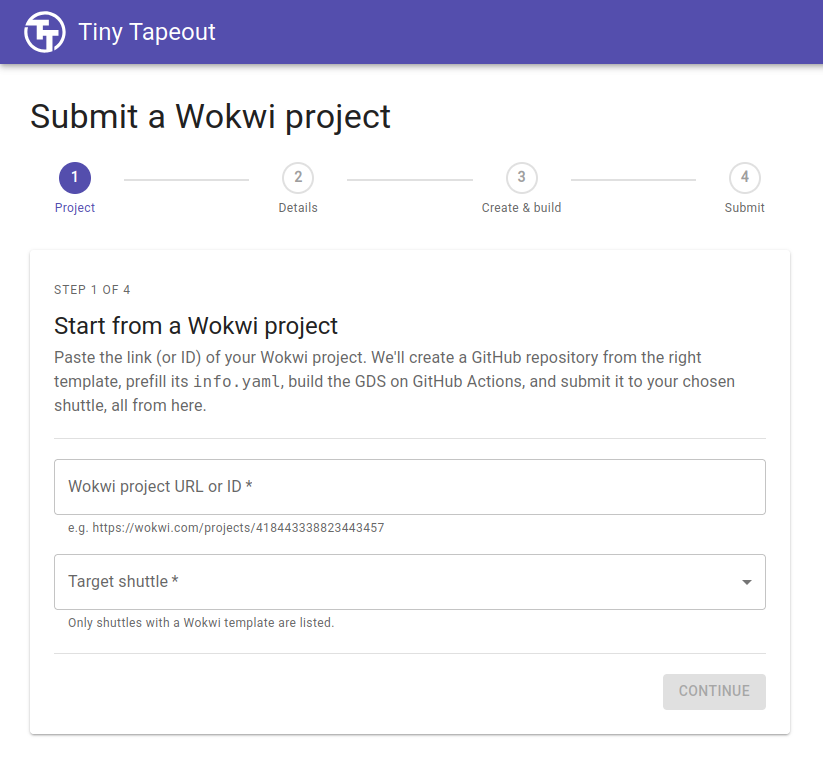
Wokwi project submission portal
Step 1 - Project Information
At this stage, you should have a Wokwi project which you can submit. Make sure you have saved the Wokwi project, as that will generate the unique project ID which you will need to proceed.
- Copy the Wokwi project URL and paste it into the form.
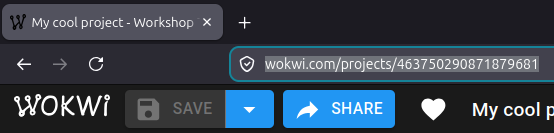
Copy the Wokwi project URL from your browser
- Select the target shuttle - this is where your project will live. Ask someone if you’re unsure!
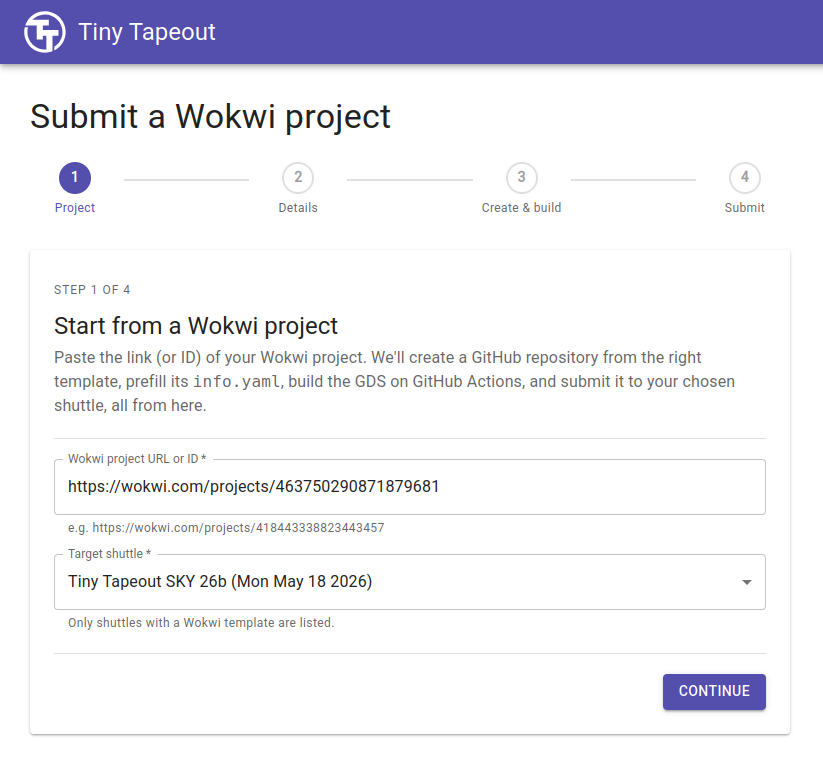
Submission form with the details filled in
Step 2 - Project Details
In this step, you will have to fill out information about your project - a title, description, expected/required clock frequency, and labels for each used pin.
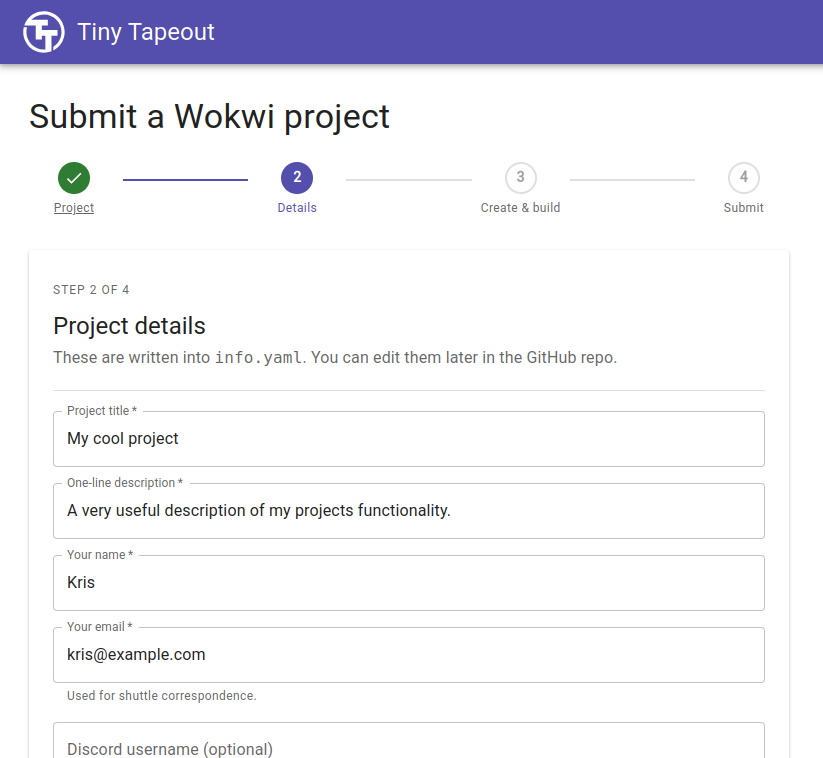
Project details form
Make sure you are descriptive. Your project will be available to others, and it is helpful to be able to understand what your project does. Parts of this form will be used to generate the shuttle datasheet.
- Fill out every applicable field - be as descriptive as possible.
Step 3 - Create & Build
To make submitting easier, the portal creates the relevant GitHub repository (containing your Wokwi project) on your behalf.
- Grant us permission via the portal to create the repository by clicking on the “Authorize GitHub” button.
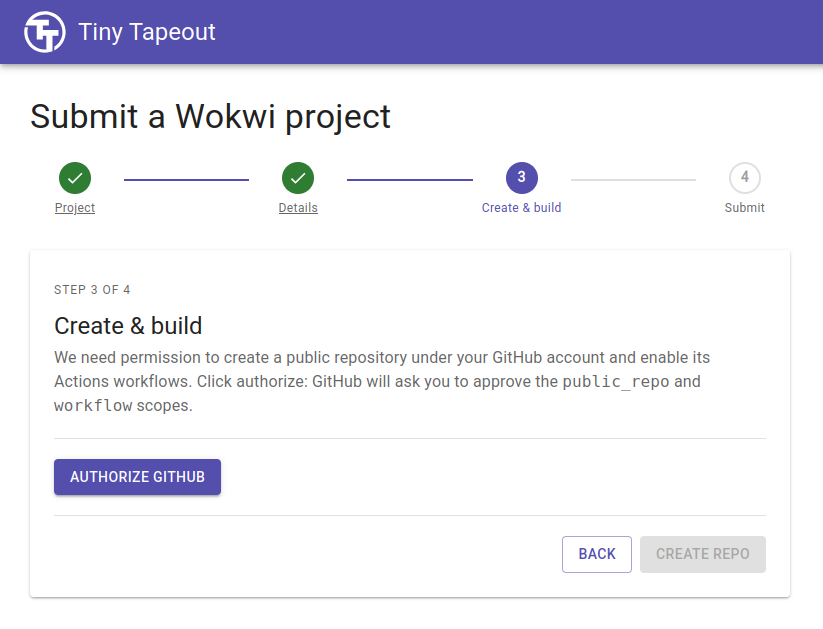
Repository creation authorization request
If successful, the webpage should refresh with a success notification.
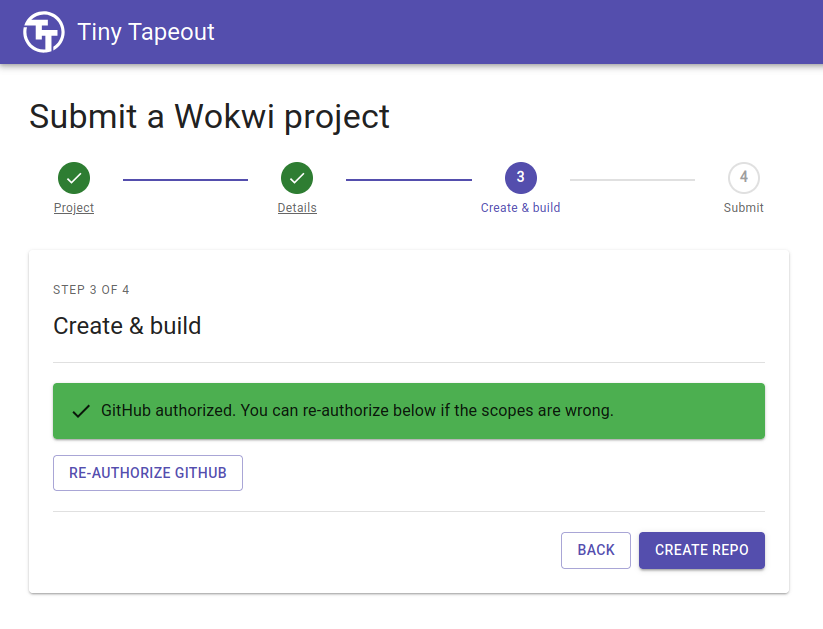
Submission portal authorization success
You can now allow us to create the repository containing your Wokwi project.
- Click on the “Create Repo” button.
The repository will now be created and the physical layout of your design will now start building!
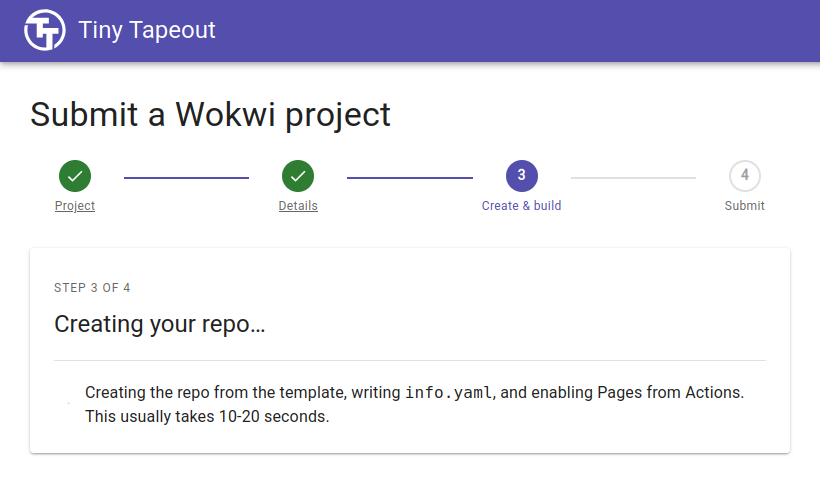
Creating the repository
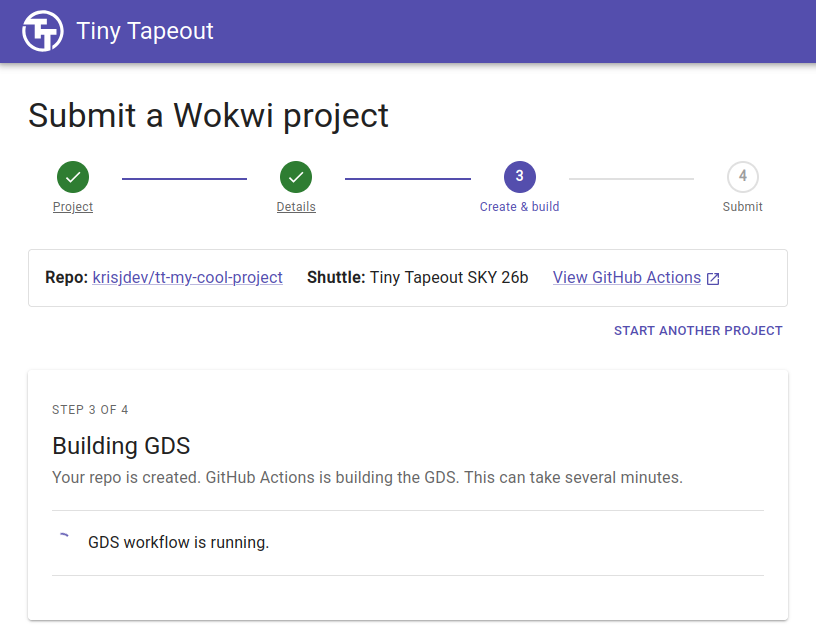
Automatically building the GDS using GitHub Actions
- It usually takes about 5 minutes for the GDS file to be created. While you wait, take a look at the repository.
Exploring the Repository
The newly created repository contains several files and features that you should know about.
The info.yaml File
info.yaml tells us the important details of your project: which Wokwi project it is, who it’s by, it’s nominal clock
speed, the amount of tiles it uses and a description of all the pins it uses. This is populated by the information you
entered in step 2 of the form.
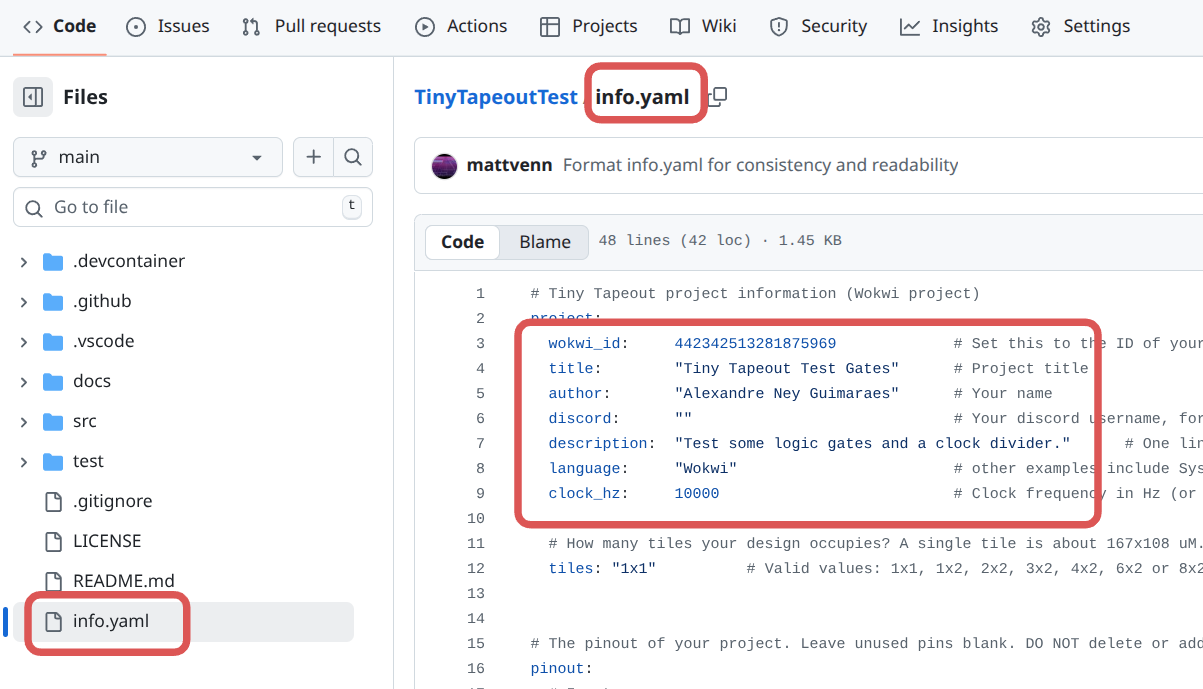
An example info.yaml file
GitHub Actions
GitHub Actions are a service provided free of charge for open source projects. They usually start a virtual machine, install and then run some software. Each commit will trigger these actions to run. We use a few different actions to do different tasks:
- docs: This action checks your docs and then generates a PDF preview.
- gds: This action generates the GDS for your project, and shows the results.
- wokwi test: This action will test the design if you created a truth table for your Wokwi design.
To see the currently running and historical actions, go to the ‘Actions’ tab in your repository.

Red indicates failure and green indicates success. Only the GDS action needs to be green to submit your design.
GDS Action
This action installs the PDK, LibreLane, and generates the GDS for your project. It displays warnings, utilization statistics, and cell usage details. If you have a failure, you can check the log to see what the problem is. The most common errors are:
- Not resolving ERC warnings in the Wokwi design
- If you get stuck, ask a TA!
Cell usage
Take a look at the standard cell usage summary. These cells are part of the PDK from Skywater Technologies. The details for each of the standard cells can be viewed by clicking the links.
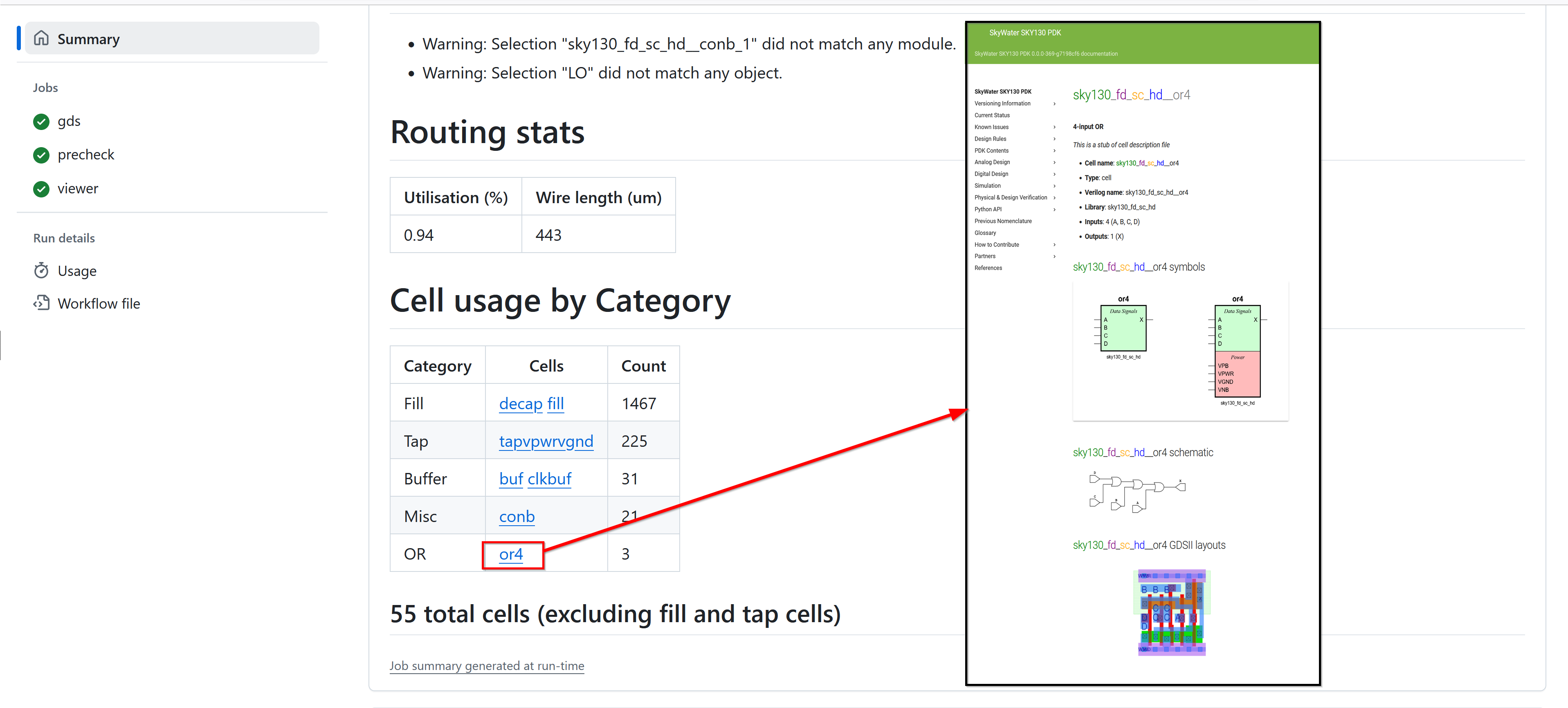
The cell usage table includes additional cells such as fill cells and tap cells that are not part of your original design. Certain cells like fill cells and tap cells are automatically inserted during the physical design stage to ensure the integrity of the layout and meet the manufacturing requirements.
Precheck
The precheck summary shows the results of all the tests we run on the design. All the checks need to be green to submit to the chip.
Viewer
This section gives you the 3D viewer link and the 2D render of your design. Open the 3D viewer by clicking the “open 3D viewer” link.
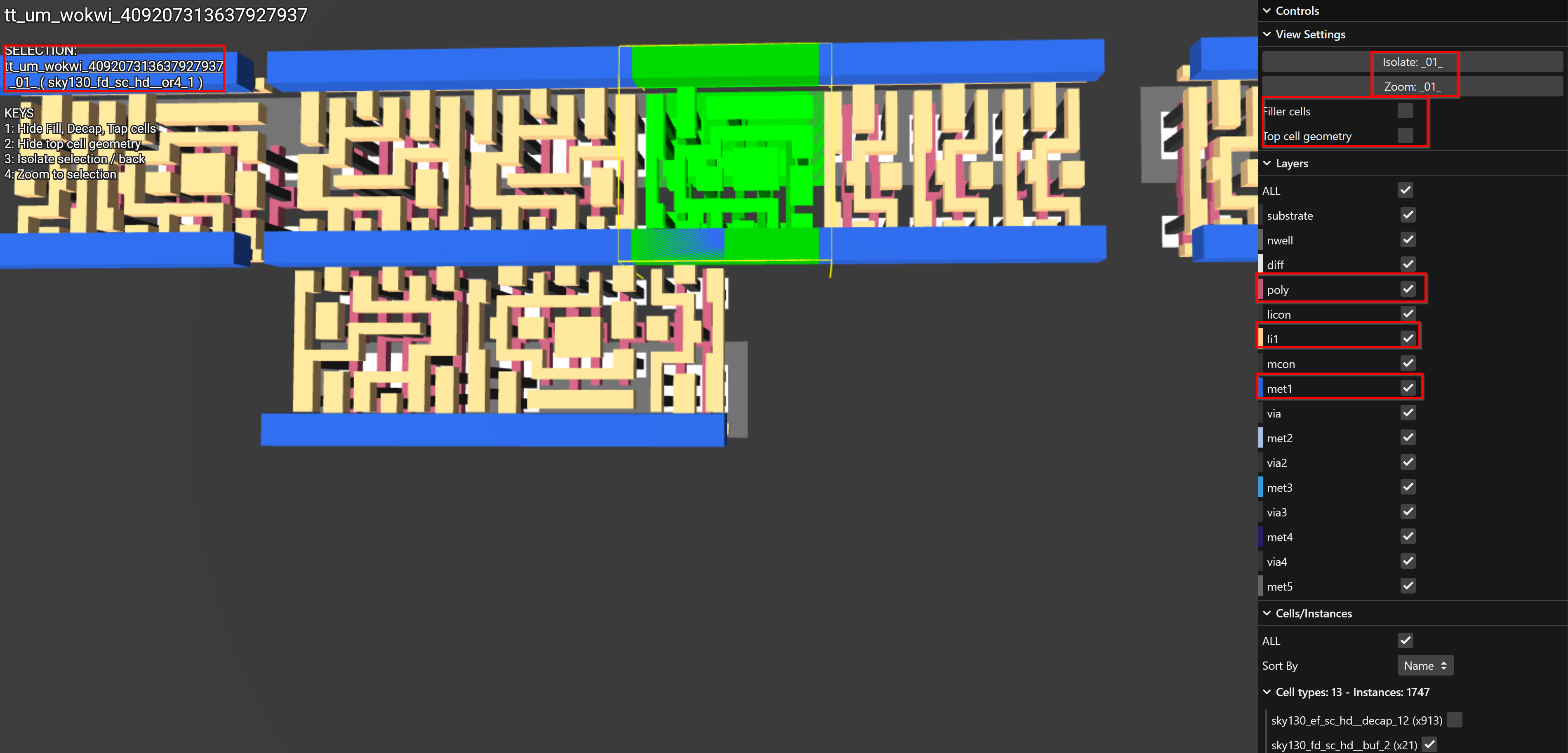
Can you match the logic gates you used in the Wokwi design with the standard cells in the physical layout?
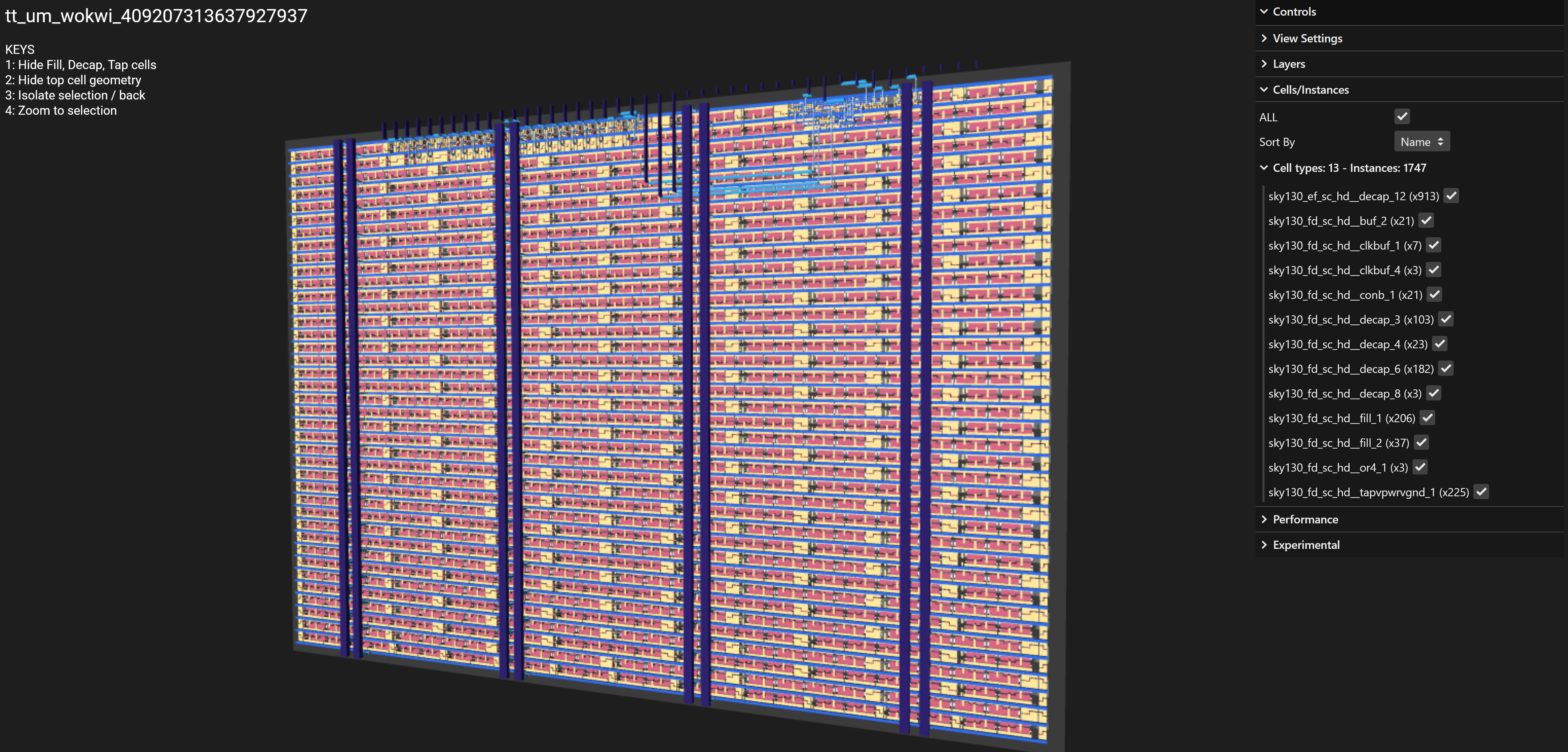
Keyboard Controls:
- Hide Fill, Decap, Tap cells.
- Hide top cell geometry.
- Isolate selection / back.
- Zoom to selection.
Mouse Controls:
- Use the mouse wheel or zoom gesture to zoom.
- Pan and tilt by clicking and dragging.
- Shift with shift left click and drag.
- The layer visibility can be toggled using the checkboxes on the right of viewer under the ’layers’ section.
Project Documentation
We collect all the project information into a datasheet and onto the website itself. You can use Markdown to write your documentation, and tell everyone what your chip does, and how to test it properly.
You may notice that the docs action has failed on your repository - projects with a failing docs action will still be included onto the shuttle, but your project information will not be included onto the shuttle datasheet.
To add documentation, follow these steps:
- Edit
docs/info.md- this should be pre-populated with some example text already. - You need to change both the ‘how it works’ and ‘how to test’ sections.
- Save and commit your changes.
Step 4 - Submit to Shuttle
The final stage - submit your design onto your selected shuttle! You will need either a coupon code, or to buy some tiles to proceed.
If you have a coupon code for a free tile then please ask a teaching assistant for your coupon. Enter it into the field, and then click submit.
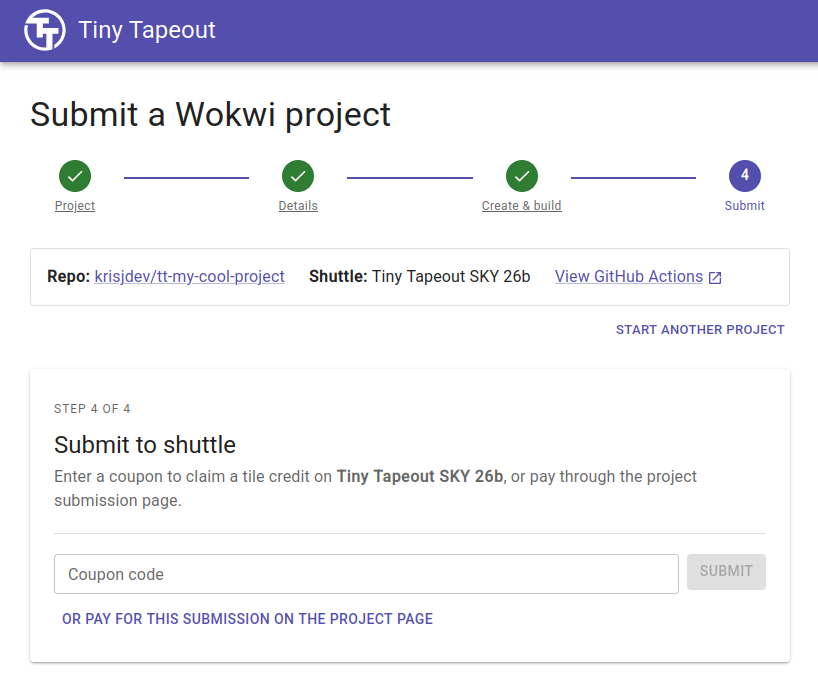
Project ready for submission to the shuttle
Your project will be automatically submitted to a shuttle, and a revision of it will be included onto the shuttle. To update your project, you will need to make your changes and then submit a new revision - this is covered in the next exercise.
Congratulations!
The GDS action should have completed successfully, and the project should now be submitted to your selected shuttle!
If you have time, try these next steps
- Add a new cell in your Wokwi design and re-trigger the GitHub action to see the result (see the tips section below for how to do that).
- If you’re familiar with Verilog or Chisel, you can take a look at the HDL templates and see how more advanced designs can be realised.
- Take a look at the Verilog exported from your design. Here’s what gets exported from the template. Edit the URL and change the ID for your design’s.
- Watch the video about how the GitHub action works behind the scenes.
Tips
On each commit the GitHub actions runs automatically. However, if you change your Wokwi design, you can force the action to run again by using the ‘Run workflow’ button.
